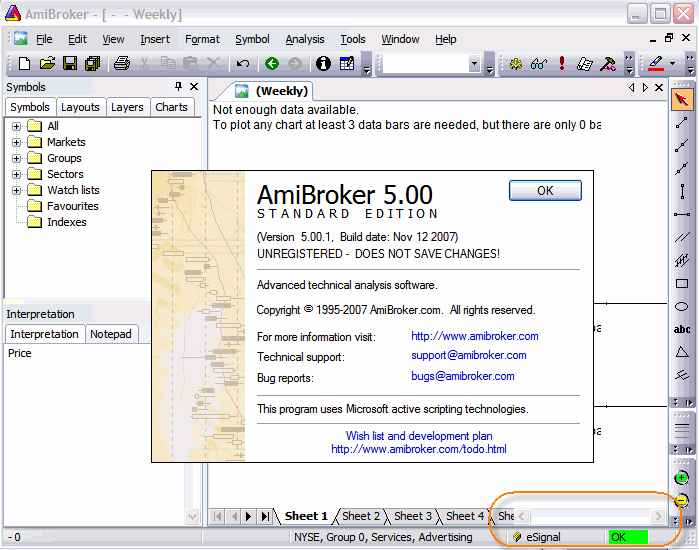
Configuring Amibroker 4.9 for Investor’s Data Feed
Investor’s OnDemand integrated data feed into AmiBroker.
To setup Data Feed for Advanced GET properly you should following these steps:
- Make sure you have properly installed Program Investor by following this link.
- Install AmiBroker by following your retail instruction.
- Install Investor’s OnDemand Investor Plugins by following this link.
- *If you installed AmiBroker after you have installed Investor’s OnDemand Investor Plugins . You data feed connect has not been installed on AmiBroker. Go to Program Investor > Tools > OnDemand Investor Plugins > 3rd party API Update. This will connect Data feed to your AmiBroker software.
- After installed Program Investor , Amibroker 4.9, and Investor’s OnDemand Data Investor Plugins .
- Start Program Investor .
- Start AmiBroker4 by selecting Start > All Programs > AmiBroker > AmiBroker.
- Apply the required settings to AmiBroker by selecting the main menu: File > New Database

- In Database folder type: C:\Program Files\AmiBroker\eSignal and Click Create
- In Data source choose eSignal RT data Investor Plugins
- You may Enable/Disable local data storage
- Enter number of Bar to Load "5000"
- Choose base Interval "1 Minute"
Choosing Base periodicity (interval) : Note that recommended periodicity is 1 minute, but you can select all base periods starting from tick up to daily (End-of-day). Note that selecting tick, 5-seconds or 15-seconds periodicities will cause transmission of huge amounts of data from Investor’s servers (for actively traded security it can be several megabytes for just one symbol and very few days of history). If you have a modem connection this setting is highly discouraged. Also you should consider using 5-second bars instead of pure ticks since this mode is faster.
If you want to have long daily histories AND intraday charts you should consider running TWO instances of AmiBroker. One for EOD charts and second for intraday charting. Both instances may use Investor’s feed as a data source.
- Click on Configure button to show Investor Plugins configuration dialog as shown below

- Enter User Name as "Local"
- Enter Password as "Local"
- Server as "localhost"
- (If applicable) please Check "Include Form-T...."
- (If applicable) Choose 500 for symbol limit (any number is fine)
- Leave Proxy settings alone if you do not have information to set them
- Click OK, and Click OK
- You are now Finish (if you are using older version of AmiBroker 4.x please continue)
- Navigate on main menu: Tools > Preferences
- Click Data tab, set inputs as image below
- Click Miscellaneous tab set four decimals for quote
- Click OK
- Now on main menu select Symbol > New and add your symbol list with a comma separated e.g. banpu.bk,ptt.bk,s&p.bk
- Your Symbols are now added and you can plot charts or create quotes.
Important: You can only use one data feed to your AmiBroker per set up. If you are going to use other data feed (such as MetaServer RT, Dynaloader, ComStock eSignal) please uninstall Investor’s Data Feed Investor Plugins . The same is true, if you are going to use Investor’s Data Feed Investor Plugins on your software, please remove other data feed from your computer.
หากสนใจทดลองใช้งานโปรแกรม investorPlugin ได้ฟรี 14 วัน คลิ๊กเลย
Tel :: 02 166 3159-61 # 103-106
Email :: sales@investorz.com